How to Create AI Animation as a Beginner: A Simple Step-by-Step Guide
AI animation for beginners is easier to explore than you might think. Have you ever looked at a beautiful illustration or a fantasy image and wondered what it would look like if it started moving? With the right AI tools, you can turn a still image into a short animated video without professional animation skills or expensive equipment.
In this guide, you’ll learn how to choose an image, write a simple animation prompt, and create your first AI video step by step.
Table of Contents
What Is AI Animation?
AI animation uses artificial intelligence to create or simulate movement in images and videos.
One of the easiest ways to get started is with image-to-video generation. You begin with a still image, upload it to an AI video tool, and describe how you want the scene to move. The tool then generates a short video based on your image and instructions.
For example, imagine a picture of a butterfly resting on a flower. You could ask an AI tool to animate the butterfly gently opening its wings while the flowers move in a light breeze.
The result won’t always be perfect, but it can be surprisingly effective.
You can use the same approach with fantasy characters, landscapes, digital paintings, illustrations, and many other types of images.
AI animation for beginners is a practical way to explore video creation without complicated animation software. By starting with a single image and a simple prompt, you can learn how AI interprets movement and gradually improve your results. This approach is ideal for anyone who wants to experiment with animated artwork, fantasy scenes, or short social media videos.
AI Animation for Beginners: Step-by-Step Tutorial
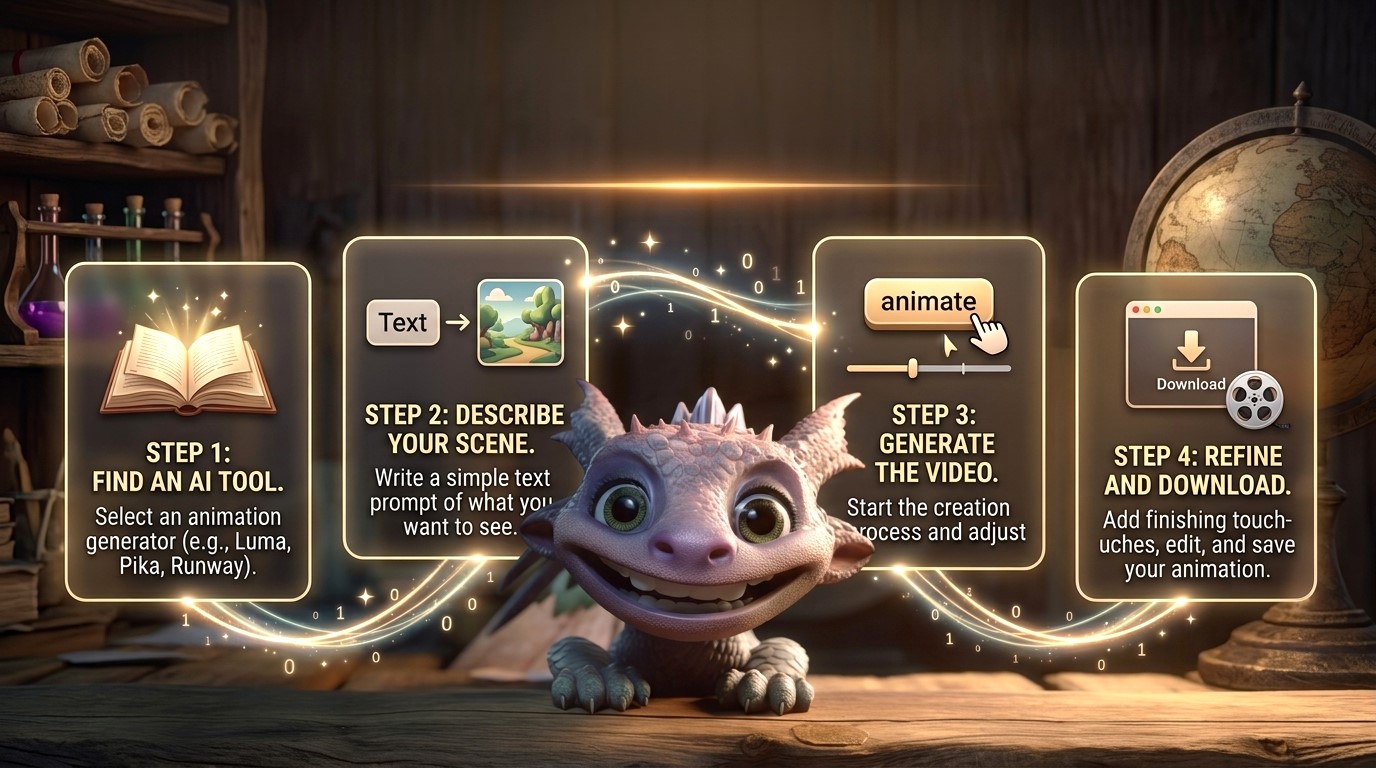
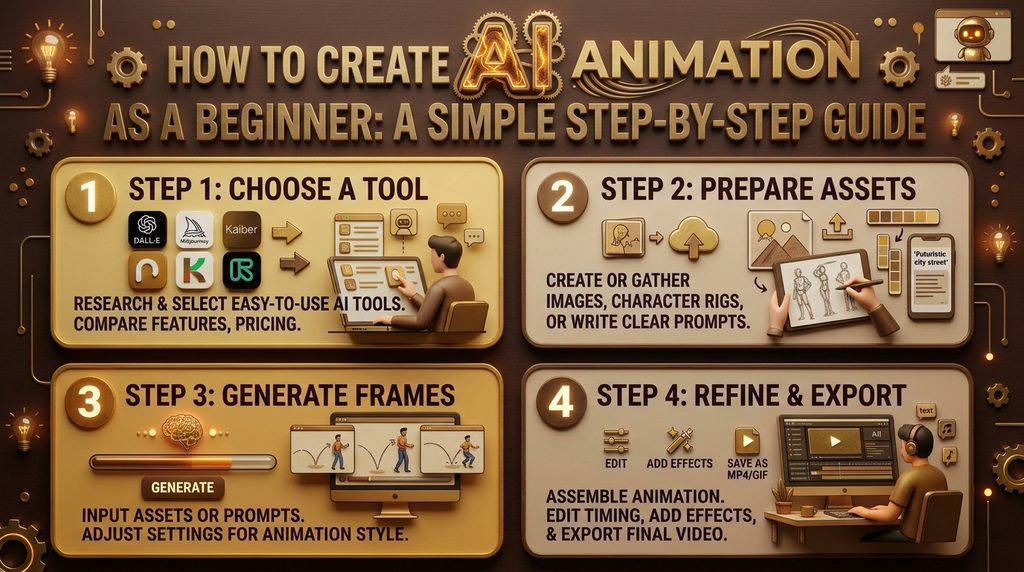
Creating your first AI animation doesn’t have to be complicated. Start with a suitable image, choose an image-to-video tool, and describe the movement you want to see. Keep your first project simple and experiment with different prompts until you find a result you like.
Step 1: Start With a Good Image
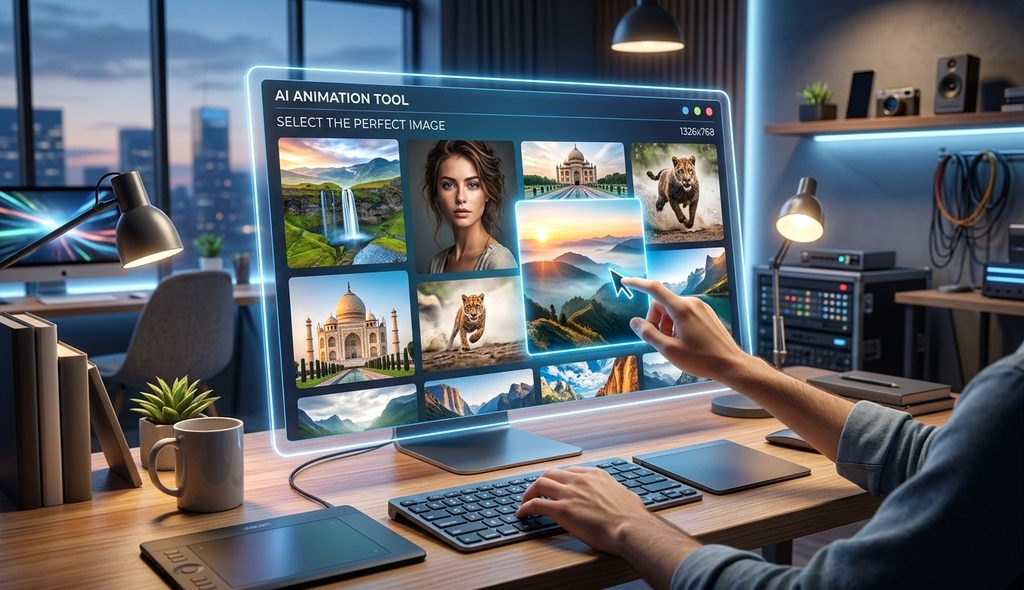
Before opening an AI animation tool, take a little time to choose the right image.
You might be tempted to start with the most detailed picture you can find, but detail alone doesn’t guarantee a good result. Sometimes a simple image with a clear subject works much better.
For your first project, look for an image that has:
- One main subject that is easy to recognize.
- A clear distinction between the foreground and background.
- Enough space around the subject for natural movement.
- A scene where the intended motion makes sense.
A character standing in a forest, a bird sitting on a branch, or a fantasy creature looking across a landscape can all be good starting points.
You can use an image you created yourself, a digital illustration, or an image generated with an AI image tool. Just make sure you have the necessary rights to use the image.
A useful tip: Don’t try to animate everything at once. If your image contains several characters, flying objects, moving water, and dramatic lighting, the AI may struggle to keep everything consistent.
Start with one clear idea.
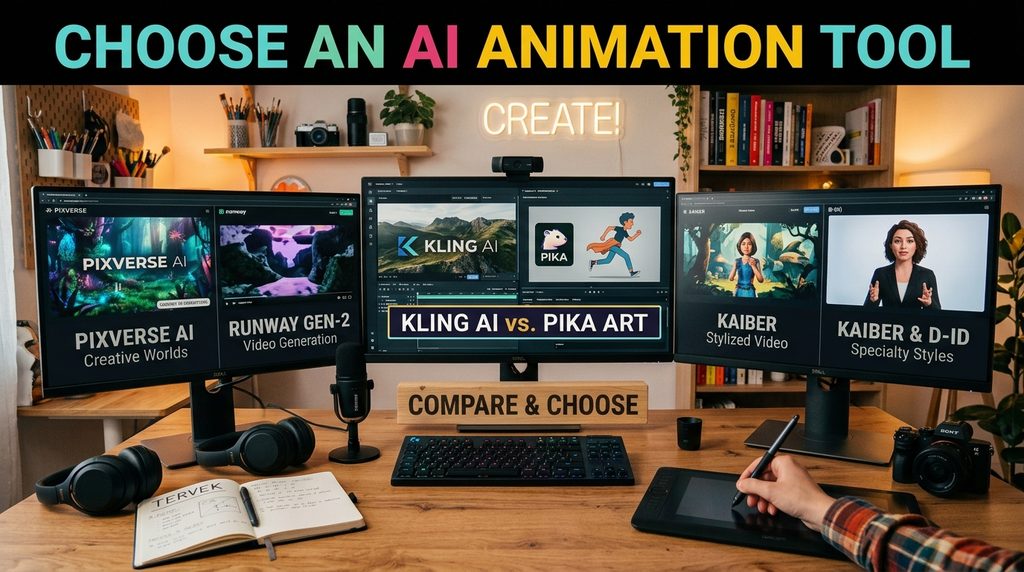
Step 2: Choose an AI Animation Tool
You don’t need a complicated animation program to make your first experiment. Several AI video generators let you upload an image and turn it into a short clip.
Some tools worth exploring include:
- Kling AI – for experimenting with image-to-video generation and more elaborate scenes.
- Runway – for AI-assisted video creation and creative control.
- PixVerse – for creating short, visually expressive AI videos.
- Pika – for experimenting with AI-generated video effects and motion.
Their features, pricing, and free usage limits can change, so check the current plans before choosing one.
For your first animation, focus on a tool that supports image-to-video generation and gives you a way to describe the movement. You don’t need every advanced feature available.
Upload your image, look through the available settings, and keep things simple.
If the tool offers different video lengths or aspect ratios, choose a short clip to begin with. A few seconds is enough to see how your idea works.
Step 3: Write a Simple Animation Prompt
This is where things get interesting.
An animation prompt tells the AI what should happen in the scene. You don’t have to write a long description, but you should be specific about the movement you want.
For example, instead of writing:
“Animate this fantasy image.”
Try describing the action:
” The butterfly slowly opens and closes its wings. The flowers sway gently in the breeze. Soft sunlight moves across the scene. Keep the camera stationary and preserve the original composition.”
This gives the AI a much clearer idea of what you want.
A good beginner prompt usually describes four things:
- The subject: What should move?
- The action: What exactly should happen?
- The environment: Should anything else move, such as leaves, clouds, or water?
- The camera: Should it remain still or move in a specific way?
Here is another example you can try with a fantasy character.
Ever wondered how to turn a still image into a moving video? With AI tools, it’s easier than you might think.
In this quick video tutorial, I’ll show you how to choose an image, upload it to an AI video generator, write a simple prompt, and generate your first animation.
No animation experience needed — just an image and a little creativity.
Watch the tutorial below and give it a try!
Example prompt:
A small fantasy dragon slowly turns its head and blinks naturally. Its chest moves gently as it breathes. A few glowing particles drift through the air in the background. Keep the character’s appearance consistent and the camera completely still. Smooth, natural movement.
Notice that the prompt focuses on a few movements rather than asking the AI to create an entirely new scene.
Step 4: Generate Your First Animation
Once your image and prompt are ready, it’s time to generate the video.
Upload the image, enter your prompt, check the available settings, and start the generation process.
The first result might look great. It might also contain strange movements or details that change unexpectedly. Both outcomes are normal when experimenting with AI video tools.
Pay attention to the details.
Does the character remain recognizable? Does the movement look natural? Does the background stay consistent? Is the camera doing something you didn’t ask it to do?
You don’t need to get everything right on the first attempt.
If the result isn’t what you expected, change one thing in the prompt and generate another version. For example, you could reduce the amount of movement, simplify the background action, or make the camera instructions more explicit.
Small adjustments can sometimes make a bigger difference than rewriting the entire prompt.
Keep in mind that each new generation may use additional credits or fall under the tool’s usage limits.
Step 5: Learn to Control Movement
One of the most common challenges in AI animation is controlling how much movement happens in a scene.
When you ask for too many things at once, the result can become chaotic. Characters may change shape, objects may appear or disappear, and the camera may move unexpectedly.
A simple rule can help: start with one main movement and add details only when necessary.
For example, if you’re animating a painted portrait, begin with a gentle blink or a slight turn of the head. Don’t immediately ask for the character to walk, speak, wave, and change expression.
If you’re working with a landscape, try moving clouds, swaying grass, or flowing water before adding more complicated effects.
Here are a few prompt phrases that can help communicate your intentions:
- “Subtle, natural movement.”
- “Keep the original character design.”
- “Preserve the background and composition.”
- “The camera remains stationary.”
- “No sudden movements or scene changes.”
These instructions can help, although different AI tools interpret prompts differently. They won’t guarantee perfect results every time.
Step 6: Turn Your Clip Into a Finished Video
Once you’re happy with the generated animation, you can use it as it is or make a few final adjustments.
A basic video editor is enough for many beginner projects. You might want to trim the clip, add music, include a title, or combine two or three short animations into a single video.
If you’re creating content for social media, think about where the video will be published.
A vertical format is often useful for short-form content, while a horizontal format may work better for YouTube videos or a website feature.
You don’t need expensive equipment for this stage. A computer or compatible smartphone, an AI video tool, and a simple editor can be enough to get started.
If your goal is to create a longer animation, remember that several short clips may be easier to manage than one complicated generation. You can build the final video scene by scene.
Do You Need a Graphics Tablet to Create AI Animation?
Not necessarily.
If your main goal is to turn existing images into moving videos, you can start without a graphics tablet. The AI video generator does most of the animation work for you.
A graphics tablet becomes more useful if you want to draw your own characters, edit illustrations, create backgrounds, or prepare images before animating them.
For example, you might draw a character in a digital art program, create a finished illustration, and then upload that illustration to an image-to-video tool.
This gives you more control over the original artwork, even though the AI still determines much of the generated movement.
If you’re just starting out, I would focus on learning the image-to-video workflow first. You can always add drawing tools to your setup later if you discover that you enjoy creating your own artwork.
Common Mistakes Beginners Should Avoid
You can save yourself time and frustration by keeping a few things in mind.
Using an image with too many competing details. A busy image can make it harder to control the result. Start with a clear subject and a simple composition.
Writing vague prompts. Tell the AI what should move instead of simply asking it to animate the picture.
Requesting too much action. Multiple complicated movements can lead to inconsistent results. Begin with one or two actions.
Expecting every generation to be perfect. AI video generation is not completely predictable. You may need several attempts to get a result you like.
Ignoring the final video format. Decide whether you’re making a vertical social media clip or a horizontal video before you start.
Paying for tools before testing them. Check current features, usage limits, and export options before committing to a subscription.
What Can You Create With AI Animation?
Once you understand the basic workflow, you can experiment with many different ideas.
You could bring your digital paintings to life, create short fantasy scenes, animate characters for social media, produce atmospheric backgrounds, or turn an original illustration into a short cinematic clip.
You can also experiment with storytelling by creating several images that show different moments in a scene and animating them individually.
The possibilities are broad, but you don’t have to explore everything at once.
Choose a subject you enjoy and see what you can do with it.
If you’re exploring AI animation for beginners, remember that practice matters more than complicated settings. Try different images, experiment with short prompts, and compare the results. Over time, you’ll discover which techniques work best for your creative ideas.
Final Thoughts
Getting started with AI animation is easier than it used to be, but creating a good result still takes experimentation.
The best way to learn is to start small. Choose one image, decide what you want to move, write a clear prompt, and generate a short clip. If something doesn’t work, adjust the prompt and try again.
You don’t need to be an experienced artist or own expensive equipment. You simply need an idea and the willingness to experiment.
Your first animation might be a little rough around the edges. That’s perfectly fine. Each attempt teaches you something about choosing images, describing movement, and working with AI tools.
Ready to try it yourself? Start with a single image today and see where your creativity takes you.
If you want to explore more creative tools, tutorials, and practical tips, visit the AIAnimMedia AI tutorials and tools. You can discover more resources to help you improve your AI video workflow and find tools that suit your creative projects.