

AI Animation for Beginners: A Simple Guide to Your First AI Video
Wondering how to make your first AI video? You’ve seen those AI-made animations and short videos all over social media, and the good news is that you can make one too, with no animation skills, no fancy computer, and no big budget.
This beginner guide walks you through the whole thing: what AI video actually is, which tools to try first, how to write prompts that work, and the mistakes almost everyone makes in the first week.
Table of Contents
What Is AI Animation, Really?
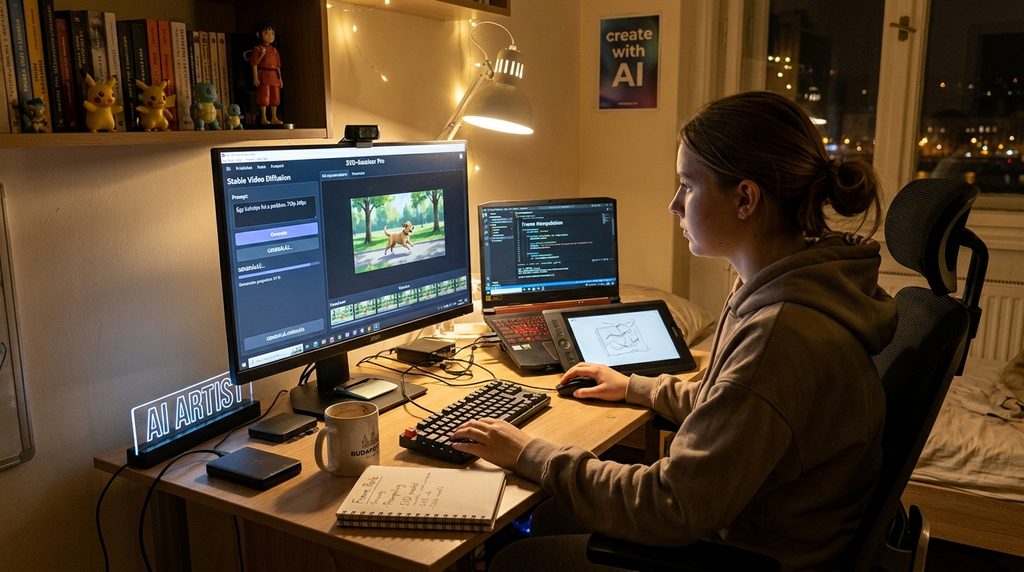
AI animation means you describe a scene (or upload an image) and an AI model generates the movement for you. Instead of drawing every frame, you give directions, and the tool does the heavy lifting.
There are two main ways to do it:
- Text-to-video: you type a description, and the AI creates a short clip from scratch.
- Image-to-video: you upload a picture, and the AI brings it to life with motion.
For beginners, image-to-video is usually the best way to learn how to make your first AI video, because you control how the first frame looks.
What You Need to Get Started
Here is everything you need before you learn how to make your first AI video. It’s less than you think:
- A computer or phone with a browser
- A free account on one AI video tool
- A few images or a simple idea
- Patience for a little trial and error
That’s it. You can upgrade your setup later (a second monitor, a graphics tablet, better audio), but none of it is required for your first video. If you’re curious what a more serious setup looks like down the road, check out our AI Creator Gear guide.
How to Make Your First AI Video, Step by Step
Follow these six steps and you’ll know how to make your first AI video in under an hour.
Step 1: Pick one simple idea
Don’t start with “an epic battle between dragons over a burning city.” Start with one subject doing one thing: a cat walking through neon rain, a woman turning her head in golden light, a car driving down an empty road.
Simple ideas give clean results. Complex ones give melted faces and chaos.
Step 2: Create a starting image (optional but recommended)
Use any AI image generator, or your own photo, to make the first frame. A strong, clear image with good lighting makes the animation much better.
Step 3: Choose a tool and upload
Open your video tool of choice, pick image-to-video, and upload your image. (More on tools below.)
Step 4: Write a short motion prompt
Describe only the movement, not the whole picture again. For example:
Close-up shot, the water drop character blinks its eyes and smiles, light water ripples on the lake, soft forest breeze swaying leaves in the background, smooth motion.
Step 5: Generate, review, repeat
Your first result probably won’t be perfect, and that’s normal. Look at what went wrong, change one thing in the prompt, and try again.
Step 6: Edit and export
Trim the clip, add music, and maybe stitch a few clips together in a free editor like CapCut. Congratulations, that’s a finished AI video.
How to Write Better Prompts
Good prompts are short, specific, and focused on motion. Here’s a simple formula:
Subject + action + camera + mood
- Subject: who or what is in the scene
- Action: what’s moving, and how (slowly, gently, quickly)
- Camera: static, slow zoom in, slow pan left
- Mood: cinematic, soft light, moody, bright
A few rules that work across almost every tool:
- Keep the camera simple. A static or very subtle camera move gives the cleanest result. Fast camera moves are where AI tends to fall apart.
- Keep motion consistent. One direction of movement is better than five things happening at once.
- Use medium motion strength if your tool has a slider. Maximum motion usually destroys detail.
- Describe movement, not appearance. The image already shows what things look like.
Beginner Tips That Save Time (and Credits)
- Start with 5-second clips. Shorter clips are cheaper and more stable. You can chain them later.
- Change one thing at a time. If you rewrite the whole prompt, you won’t know what fixed (or broke) the result.
- Save your best prompts. Keep a simple notes file. Reusing what works is the fastest way to improve.
- Use the same image style across clips if you want a video that feels like one story.
- Watch the hands and faces. These are the usual trouble spots. If they look off, regenerate instead of trying to fix them.
- Add sound last. Music and sound effects hide small flaws and make clips feel far more professional.
Common Beginner Mistakes
- Too much in one prompt. Long, complicated prompts confuse the model. Short and clear wins.
- Expecting perfection on the first try. Even experienced creators generate several versions of every shot.
- Burning through free credits on random tests. Plan your shot first, then generate.
- Ignoring the starting image. A blurry or cluttered image gives a blurry, cluttered video.
- Skipping the edit. Raw AI clips look much better with trimming, color tweaks, and sound.
For a deeper list, see our post on AI video creation mistakes and our AI video workflow guide (image, then video, then upscale, then edit).
Which Tool Should a Beginner Start With?
There are plenty of options, and free plans change often, so always check the current limits on each site. As of October 2026, here’s roughly what we saw:
| Tool | Free plan (Oct 2026) | Good for beginners? |
|---|---|---|
| PixVerse | 30 daily credits, about one 5-second video per day | Yes, the daily refresh is great for practice |
| Runway | 500 credits on first sign-up | Yes, but the credits don’t refresh |
| Hailuo (MiniMax) | One-time credits only | Fine for a test, then paid |
| Luma | One free generation, then limited credits | Good for trying it once |
| Kling | 66 free credits, not enough for a full video | Better once you’re ready to pay |
Personally, I use PixVerse’s free plan for my own animations. I experiment with different scenes (a portrait, a moving car, a moody city shot) and see what the model handles well. The daily credits are limited, but they’re enough to test one idea a day without spending anything. If the results look good and the tool fits the way I work, that’s the point where I think a paid plan is worth it. My advice is to do the same: practice on the free plan first, and only upgrade once you know it does what you need. [Get started with PixVerse through our affiliate link]. It doesn’t cost you anything extra, and it helps support the site.
Check our 3 best AI video generators and AI animation tools roundup for deeper comparisons.
A Simple 7-Day Practice Plan
- Day 1: Make one image-to-video clip with a static camera.
- Day 2: Try a slow zoom in.
- Day 3: Animate a character’s face (head turn, blink, smile).
- Day 4: Animate an object (smoke, water, fabric, a car).
- Day 5: Make two clips with the same style and join them.
- Day 6: Add music and sound effects in a free editor.
- Day 7: Post your best one and see what people say.
One short clip a day is enough to learn the basics in a week.
FAQ
Do I need to know how to draw or animate? No. You only need ideas and a willingness to experiment.
Is AI animation free? You can start free on several tools, but free plans are limited. Daily credits let you practice, and paid plans make sense once you’re making videos regularly.
What’s the difference between AI animation and AI video? In practice, the terms overlap. “AI animation” usually means stylized or character-focused clips, while “AI video” often means more realistic footage. The tools and the workflow are mostly the same.
Do I need a powerful computer? No. Most tools run in the cloud, so a normal laptop or even a phone is enough.
How long does it take to learn how to make your first AI video? Most beginners finish their first clip in an afternoon, and feel comfortable after about a week of daily practice.
Can I use AI videos on social media? Generally yes, but check each tool’s terms for commercial use, and be aware that platforms and some regions (like the EU) are introducing labeling and watermarking rules for AI content.
Final Thoughts
Learning how to make your first AI video really comes down to this: start simple, write short motion-focused prompts, expect to retry, and edit your clips afterward. Make one small video today, and you’ll already be ahead of most people who are only thinking about trying it.