
7 Image-to-Video Mistakes and How to Fix Them (With Prompt Examples)
Creating videos with AI can be exciting, especially when a simple image turns into a moving scene in just a few steps. But the results don’t always match your expectations. Characters may change appearance, movements can look unnatural, and the camera might zoom in when you want a steady shot.
The good news is that most AI video mistakes can be reduced with a few practical adjustments.
In this guide, we’ll look at 7 common AI video mistakes and how to fix them, with simple tips you can try in your next project. Whether you’re creating animated animals, fantasy scenes, or short videos for Pinterest and Instagram, these techniques can help you build a more reliable workflow.
Disclosure: This article contains affiliate links. If you sign up or make a purchase through them, we may earn a commission at no extra cost to you.
Table of Contents
- Writing Prompts That Are Too Vague
- Trying to Fit Too Much Action Into One Video
- Ignoring Character Consistency
- Unnatural Movement and Distorted Body Parts
- Unwanted Camera Zooms and Sudden Movement
- Using Too Many Visual Effects
- Publishing Without Reviewing the Final Video
- A Simple AI Video Workflow for Better Results
- Final Thoughts
- Frequently Asked Questions
1. Writing Prompts That Are Too Vague
One of the most common AI video mistakes is giving the generator too little information about the action.
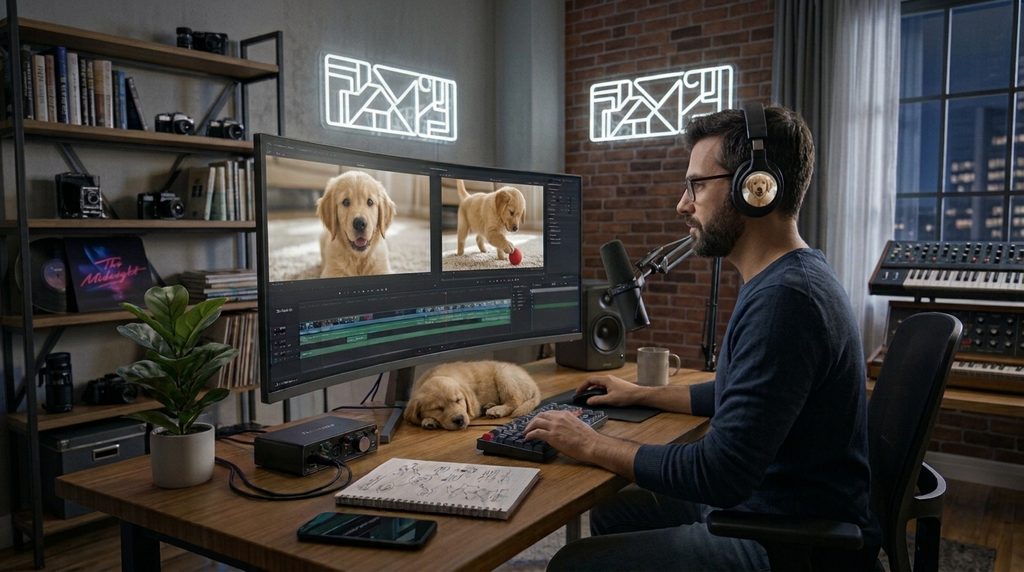
A prompt such as “a cute puppy playing in a garden” describes the subject and location, but it doesn’t explain what the puppy should actually do. The result may be unpredictable because the generator has to interpret the action for itself.
How to fix it
Describe one clear action and explain how it develops. Include the character’s movement, its interaction with the environment, and the mood of the scene.
Basic prompt:
“A puppy playing in a garden.”
Improved prompt:
“A fluffy golden retriever puppy takes three playful steps across a sunny garden, notices a butterfly, and gently lifts one paw as the butterfly flies away. The puppy tilts its head curiously. Natural movement, soft daylight, fixed camera, no zoom.”
The improved version gives the generator a more specific scene to interpret.
Tip: You don’t need to write a very long prompt. Clear instructions are often more useful than adding lots of unrelated details.
For more tips on writing effective prompts, check out Adobe’s guide to text prompts for video generation.
Try Your Prompt in PixVerse
Once you have a clear prompt, you can test it with an image-to-video tool such as PixVerse. Start with a simple action, describe the movement you want, and specify the camera behavior to help guide the result.
Want to try PixVerse? Explore PixVerse here.
2. Trying to Fit Too Much Action Into One Video
It’s tempting to ask an AI video generator to create an entire story in one clip. For example, a kitten might run through a forest, climb a tree, meet a bird, jump into a river, and discover a magical castle.
This is one of the AI video mistakes that beginners make most often: complex sequences can lead to inconsistent characters, confusing transitions, or movements that don’t connect naturally.
How to fix it
Break your idea into short scenes, each with one main action. For example, a fantasy animation could follow this structure:
- Scene 1: A kitten discovers a glowing butterfly in a forest.
- Scene 2: The kitten follows the butterfly toward an old stone bridge.
- Scene 3: The butterfly transforms into a tiny magical light, revealing a hidden path.
Generate each scene separately when your chosen tool supports this workflow. Then combine the clips in a video editor if needed.
This approach gives you more control over the pacing and makes it easier to correct individual scenes without starting the entire project again.
3. Ignoring Character Consistency
Have you ever generated a video where the animal changes color, its face looks different, or its body proportions shift between frames?
Character consistency is a common challenge in AI-generated video. Even when you describe the subject carefully, its appearance may change during movement.
How to fix it
Start with a clear source image and describe the character’s most important features. For example:
“Keep the same small orange kitten throughout the entire video, with white paws, green eyes, a pink nose, and short fluffy fur. Maintain consistent facial features, body proportions, and fur markings during all movements.”
When working with image-to-video generation, use a source image that clearly shows the subject. Avoid unnecessary changes to its clothing, lighting, or appearance within the same clip.
If your tool offers reference images or character consistency controls, check whether they are suitable for your workflow.
Tip: A simple action often makes it easier to preserve a character’s appearance than a scene involving several rapid movements.
4. Unnatural Movement and Distorted Body Parts
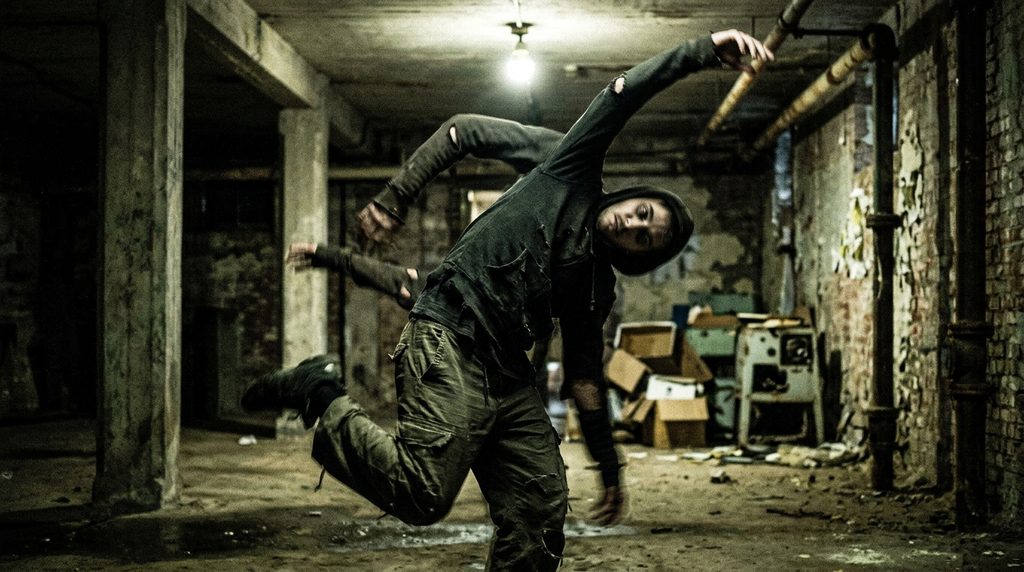
AI-generated characters sometimes move in unusual ways. Paws may bend incorrectly, legs may slide across the ground, or an animal may suddenly change shape during a jump.
These AI video mistakes can be particularly noticeable in close-up shots or scenes with complicated physical interactions.
How to fix it
Describe movements that are physically simple and believable. Instead of asking a puppy to perform several acrobatic tricks, try a short sequence in which it takes a few steps, turns its head, and wags its tail.
You can also include instructions such as:
- Natural body movement.
- Realistic anatomy and proportions.
- Smooth, controlled motion.
- No distorted paws or extra limbs.
- Keep the animal’s body shape consistent.
These instructions can help guide the result, but they cannot guarantee perfect anatomy in every frame. Some tools also handle “no…” phrases less reliably than positive wording, so if a negative instruction is ignored, try describing what you want instead (for example, “four paws, normal proportions”).
If a movement repeatedly looks wrong, simplify the action or choose a different starting image.
5. Unwanted Camera Zooms and Sudden Movement
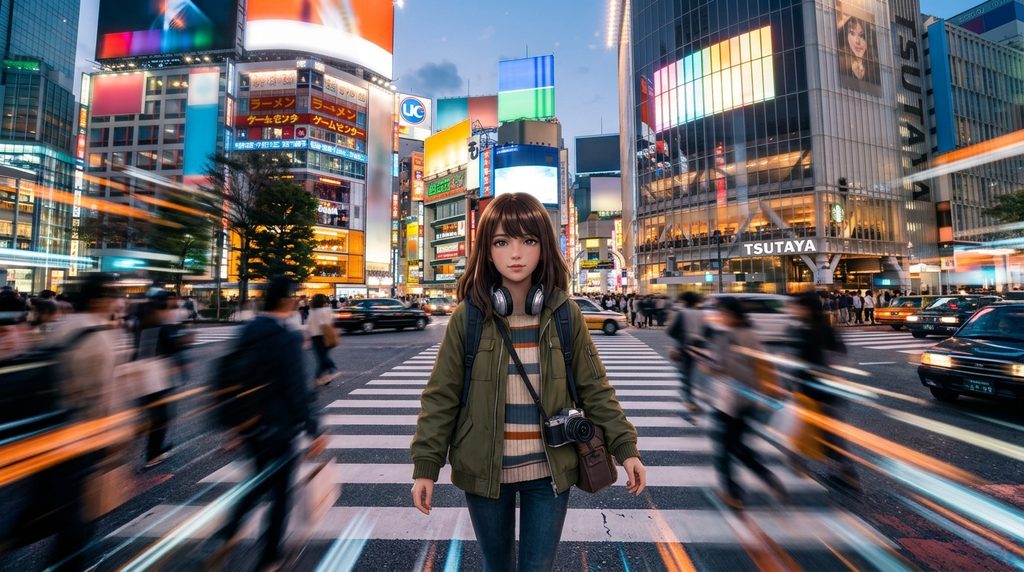
You may want a calm, stable shot of a puppy playing, but the generated video slowly zooms in or moves the camera unexpectedly. This can be frustrating when you’re creating a series of clips that need a consistent visual style.
How to fix it
Include camera instructions directly in your prompt. For a stable shot, try wording such as:
“Fixed camera position, medium-wide composition, no zoom, no camera shake, no sudden pans or tilts. Keep the entire character visible in the frame.”
If “no zoom” doesn’t work in your tool, a positive alternative such as “locked-off, static camera” may do better.
For a scene that needs movement, specify the intended camera motion rather than leaving it open to interpretation. For example, you might request a gentle tracking shot that follows a walking character at a consistent distance.
If the result still moves unexpectedly, try a simpler prompt and a source image with enough space around the subject.
Tip: If you’re creating videos for a consistent series, decide on the camera style before generating your clips.
6. Using Too Many Visual Effects
Glowing particles, dramatic lighting, fog, sparks, floating objects, and magical transformations can make a scene look impressive. However, adding too many effects at once can distract from the main action. It may also make it harder for the generator to preserve the subject and background consistently.
How to fix it
Choose one or two visual effects that support the story. For example, if you’re creating a magical forest animation, focus on glowing fireflies and soft light filtering through the trees. Let the character’s movement remain simple.
Try this prompt:
“A small black kitten walks slowly through a peaceful fantasy garden at twilight. Golden fireflies drift gently around the flowers, creating subtle reflections in the kitten’s eyes. Soft magical lighting, natural movement, detailed fur, stable camera, no zoom.”
The scene still feels magical without overwhelming the main subject.
When reviewing your result, ask yourself whether each effect improves the scene or simply adds visual noise. Keeping effects minimal is one of the easiest ways to avoid AI video mistakes.
7. Publishing Without Reviewing the Final Video
Skipping the final check is one of the AI video mistakes that is easiest to avoid. Even a promising prompt can produce unexpected results. An object may appear in the wrong place, the character may change during a movement, or the ending may feel abrupt. Publishing the first generation without checking it can mean missing problems that are easy to spot during playback.
How to fix it
Watch the entire video before sharing it. Pay attention to the beginning, middle, and end. Use this quick review checklist:
- Does the character look consistent?
- Are the movements natural enough for the scene?
- Does the camera behave as intended?
- Are there any visible distortions or flickering objects?
- Does the action make sense from beginning to end?
- Does the video end cleanly, without an awkward pause or sudden cut?
- Is the format suitable for the platform where you’ll publish it?
If something looks wrong, identify the specific problem and adjust the prompt accordingly. You may only need to change one sentence rather than regenerate the entire scene with a completely different prompt.
A Simple AI Video Workflow for Better Results
You can use this workflow to avoid common AI video mistakes in many image-to-video projects, from cute animal clips to fantasy animations.
Step 1: Start With One Clear Idea
Decide what the viewer should see. Keep the concept simple enough to understand in a short clip.
Step 2: Prepare Your Source Image
Choose an image with a clearly visible subject, suitable framing, and a background that supports the scene.
Step 3: Write a Specific Prompt
Describe the action, movement, environment, and camera behavior. Add consistency instructions when necessary.
Step 4: Generate and Review
Watch the result carefully. Identify the most noticeable issue rather than trying to fix everything at once.
Step 5: Refine the Prompt
Simplify difficult movements, clarify the intended camera position, or reduce unnecessary effects.
Step 6: Edit and Publish
If needed, combine clips, trim awkward beginnings or endings, and prepare the correct aspect ratio for your chosen platform.
If you’re new to AI animation, follow our step-by-step AI animation tutorial for beginners to see how the process works.
Final Thoughts
AI video generation is a creative process, and the first result won’t always be the best one. Most AI video mistakes are fixable: vague prompts, complicated actions, inconsistent characters, and unwanted camera movement can all make a video less convincing, but each has a simple remedy.
The best approach is to keep your ideas clear, start with simple movements, and refine your prompts based on what you see in the generated result. You don’t need to change everything at once. Sometimes, a more specific action or a simple camera instruction is enough to improve a scene.
Keep experimenting, save the prompts that work well, and develop a workflow that suits your style.
Looking for more ideas, AI tools, and practical tutorials? Explore the AIAnimMedia blog and discover new ways to improve your AI video projects.
Frequently Asked Questions
Why do AI-generated videos sometimes look unnatural?
Most AI video mistakes come from the fact that generators can struggle with complex movement, physical interactions, and maintaining consistent details between frames. Clear prompts, simple actions, and suitable source images can help reduce these problems.
How can I stop an AI video from zooming in?
Try including instructions such as “fixed camera,” “no zoom,” and “no sudden camera movement.” Results vary between tools, so you may need to simplify the prompt or try a different generation.
How do I keep the same character throughout an AI video?
Describe the character’s distinctive features and ask the generator to preserve them. A clear source image and simple movements can help. If your tool supports character references or consistency settings, consider using them.
Should I use long or short prompts for AI video generation?
Neither length is automatically better. Focus on clear, relevant instructions that describe the subject, action, movement, and camera. Remove details that don’t contribute to the scene.
Can I use these techniques for AI animal animations?
Yes. The same principles apply to puppies, kittens, birds, and other animated animals. Keep the action clear, use natural movement, and maintain a consistent character description.