
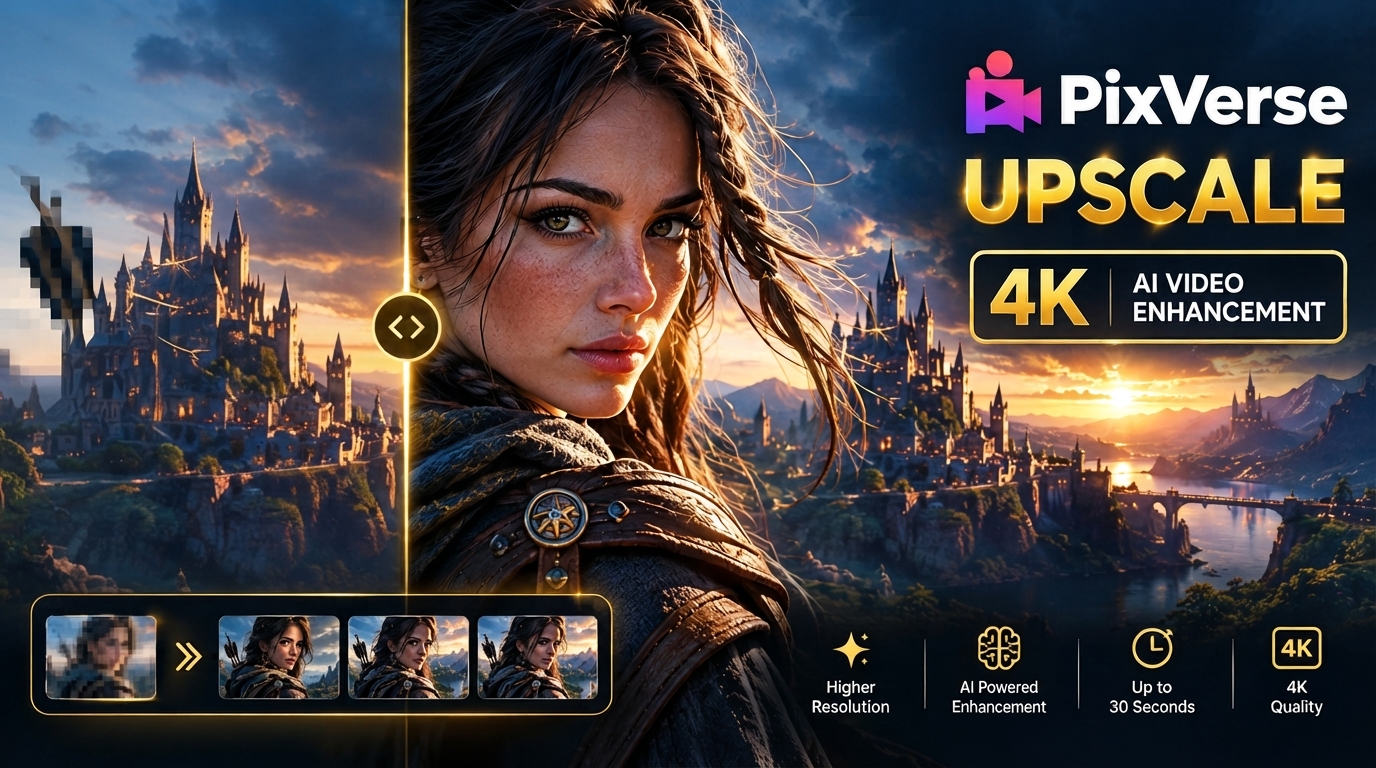
PixVerse Upscale: How to Enhance AI Videos
I almost skipped this update, and I’m glad I didn’t. The new Pixverse Upscale feature, which upscales both images and videos to 4K, works on clips as short as 30 seconds. If you’ve been sitting on a folder full of PixVerse generations that looked a little soft or compressed, this update will fix that without you having to regenerate anything.. If you’ve been sitting on a folder of PixVerse generations that looked a little soft or compressed, this is the update that fixes that without you having to regenerate a single thing.
Table of Contents

PixVerse Upscale: What Is It?
AI video generators can create impressive footage, but the original output isn’t always ideal for publishing.Sometimes a clip looks soft, lacks fine detail, or simply needs a higher resolution for the final project.That’s where an upscaling workflow can help.
PixVerse currently includes upscaling among its broader AI video toolkit, alongside features such as text-to-video, image-to-video, motion control, and video modification.The important point is that upscaling should be viewed as a finishing step, not a way to repair every problem in an AI-generated video.
Why Upscale an AI Video?
Upscaling can be useful when you want to:
- Improve the apparent detail of a clip
- Prepare footage for a larger display
- Create a higher-resolution version
- Improve an older AI-generated video
- Prepare footage for further editing
- Produce a cleaner final export
However, the original video still matters.
An upscaler cannot always reconstruct information that wasn’t present in the source.
How to Use PixVerse Upscale
A simple workflow is:
Step 1: Create Your Original Video
Start with the cleanest version of your video.
Avoid repeatedly downloading and re-uploading compressed versions.
Step 2: Upload the Video
Open the available PixVerse upscaling workflow and add your source clip.
Use the highest-quality original file you have.
Step 3: Select the Upscaling Option
Choose the available enhancement or upscale setting.
Depending on the current version of the platform, available options may change.
Step 4: Process the Video
Start the enhancement process and wait for the result.
Processing time can depend on the video length, resolution, and current platform load.
Step 5: Compare the Result
Don’t simply look at the final resolution.
Check:
- Faces
- Hair
- Hands
- Small objects
- Text
- Background details
- Fast movement
These areas can reveal whether the upscale actually improved the video.
Before and After: What Should You Look For?
A higher resolution number doesn’t necessarily mean a better-looking video.
For example, if an original clip contains blurry facial details, an upscaler may improve the appearance, but it cannot always reconstruct information that was never present.
That’s why visual comparison is more important than the number shown in the export settings.
Tips for Better Results
Start With a Clean Source
Always use the original generation whenever possible.
Avoid upscaling a video that has already been compressed several times.
Don’t Overprocess
More enhancement isn’t automatically better.
Excessive processing can sometimes make textures appear unnatural.
Check Moving Objects
Static frames can look excellent while movement still contains artifacts.
Watch the entire clip before publishing.
Use the Final Version for Editing
If you plan to add effects, captions, or transitions, consider where upscaling fits into your workflow.
A practical sequence is:
Generate → Edit → Upscale → Final Export
However, the best order can depend on the editing software and the type of project.
Is PixVerse Upscale Worth Using?
For creators who already generate AI video, an upscaling step can be useful when the original output needs additional resolution or visual refinement.
But don’t expect it to completely repair poor generations.
The best results usually come from a good source video combined with careful enhancement.

PixVerse Upscale for Social Media
For TikTok, Instagram Reels, YouTube Shorts, and similar platforms, the most important thing isn’t simply having the largest possible resolution.
You also need:
- Correct aspect ratio
- Clean subject separation
- Stable motion
- Readable text
- Good compression after export
A high-resolution video with broken motion is still a poor video.
Final Verdict
PixVerse Upscale is best viewed as part of an AI video production workflow rather than a replacement for good generation.
Create the strongest original clip you can, enhance it when necessary, and always inspect the final result before publishing.
That approach will usually produce better results than trying to fix every problem during the upscaling stage.
FAQ
Can PixVerse Upscale improve an AI-generated video?
Yes, an upscaling workflow can improve resolution and the appearance of details, although it cannot perfectly reconstruct missing information.
Should I upscale every AI video?
Not necessarily. If the original video already has the quality you need, additional processing may not provide much benefit.
Is 4K always better?
Not automatically. A higher resolution does not guarantee better motion, detail, or consistency.
What is the best source for upscaling?
Use the highest-quality original video available and avoid repeatedly compressed files.
For more breaking updates on AI tools, models, and industry news, check out our AI News section for the latest coverage.