
Gemini Omni: Google’s New AI Video Model Explained
Google is taking a different approach to AI video with Gemini Omni.
Instead of treating video generation as a simple “write a prompt and get a clip” process, Gemini Omni is designed to work with multiple types of input, including text, images, audio and video.
Its biggest advantage may not be the first video it generates. The more interesting part is what happens afterward: you can continue the conversation and ask Gemini to edit, refine or change the result.
This shift toward conversational, multimodal control is what makes Gemini Omni AI video creation feel fundamentally different from earlier text-to-video tools.
That makes Gemini Omni one of Google’s most interesting developments for AI video creation in 2026.
Table of Contents

What Is Gemini Omni?
Gemini Omni is Google’s multimodal generative model family, starting with video.
The idea behind Omni is fairly simple: instead of relying on one type of input, the model can understand different forms of media and use them together when creating content.
The first model in the family is Gemini Omni Flash.
It is designed for fast video generation and editing while combining Google’s Gemini intelligence with its generative media technology.
Depending on the workflow, creators can work with:
- Text
- Images
- Video
- Audio
- Reference material
- Natural-language editing instructions
This makes Gemini Omni different from a traditional text-to-video generator.
Instead of starting with:
Text prompt → Video
the workflow can become:
Text + Image + Video + Audio → Generated or edited video
That difference becomes much more important when you are working on real projects rather than simply testing AI video for fun.
If you’re new to AI video creation, our guide to AI Video Creation Tips: 5 Mistakes to Avoid is a useful starting point before experimenting with advanced workflows.
Gemini Omni Flash: The First Omni Model
Gemini Omni Flash is the first model in Google’s Omni family.
Google describes it as a model designed to create and edit video from different types of input while making video editing more conversational.
The model is available across Google’s AI ecosystem, including Google Flow, with availability and features depending on the product, account, subscription and region.
For developers, Gemini Omni Flash is also available through the Gemini API as a preview model.
The current API version supports short video generation, making Omni Flash particularly suitable for individual shots, social media clips, experiments and short-form projects that can later be combined into a longer video.
Google’s Flow ecosystem also supports short Gemini Omni Flash generations, with available duration and features depending on the current model and account.
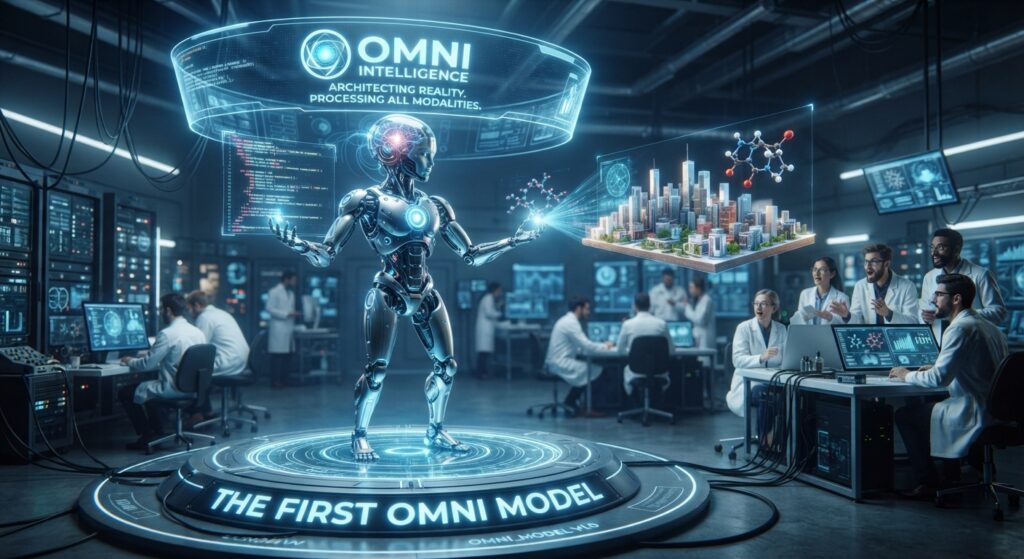
Create Videos From Multiple Inputs
This is where Gemini Omni becomes genuinely interesting.
Many AI video tools still rely heavily on a text prompt. You describe the scene, camera movement and style, and the model generates a result.
Gemini Omni expands that idea by allowing creators to use visual and other media references.
For example, imagine you have an image of a futuristic city.
Instead of describing every detail from scratch, you can provide the image as a reference and then tell Gemini what should happen:
Turn this image into a cinematic night scene. Slowly move the camera forward while neon signs flicker and light rain falls.
The image provides the visual foundation while the prompt explains the desired movement.
You can also build more advanced workflows around existing video and other reference material.
This is useful for:
- AI animation
- Product videos
- Social media content
- YouTube Shorts
- Explainer videos
- Concept videos
- Character animation
- Short cinematic scenes
The important point is that Gemini Omni is designed to understand the relationship between the instructions and the media you provide.
Edit Videos Through Conversation
This could be the feature that has the biggest impact on everyday AI video creation.
Traditional workflows often look something like this:
Generate → Download → Edit → Regenerate → Download again
If something is wrong with the character, background, lighting or camera movement, you may need to start another generation.
Gemini Omni takes a more conversational approach.
You can generate a video and then continue giving instructions.
For example:
Change the background to a futuristic city.
Then:
Make the lighting warmer.
Then:
Keep the character but change the camera angle.
Then:
Add light rain and make the scene feel more cinematic.
The goal is to make video editing feel more like a conversation than a series of disconnected generations.
That matters because most creators don’t get the final result on the first attempt.
Video production is iterative.
You generate something, find a problem, make a change and repeat the process.
If the model can preserve important elements while applying those changes, it can potentially save a lot of time.
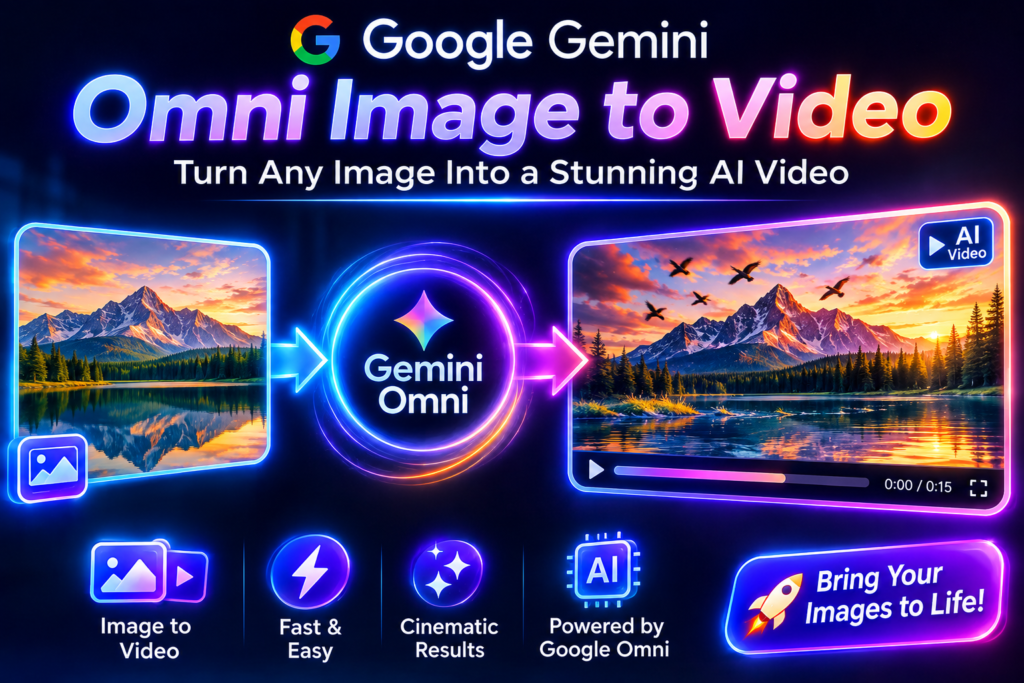
Image-to-Video and Reference Workflows
Gemini Omni Flash is also useful for creators who already work with AI-generated images.
A common workflow might look like:
AI image → Gemini Omni → Video → Editing → Final clip
For example, you could create a character image first and then use Gemini Omni to animate it.
A useful prompt could be:
Animate this character naturally. Keep the character’s appearance consistent while the camera slowly moves closer. Add subtle wind movement to the clothing and background.
The more specific the instructions are, the easier it is to communicate the intended result.
Google’s guidance also recommends using clear reference material and avoiding conflicting instructions.
For example, if your reference image shows a character standing still, but your prompt simultaneously asks for several conflicting poses, the model has to decide which instruction should take priority.
A cleaner workflow is:
Reference image + clear action + clear camera direction + clear environment
That usually gives the model less ambiguity to resolve.
If you want to compare this approach with another popular AI video workflow, see our PixVerse Workflow guide, where we cover practical ways to get more consistent AI video results.
AI Avatars and Character References
Another interesting part of Google’s AI video ecosystem is the growing focus on consistent characters and avatars.
Keeping the same person or character consistent across multiple AI-generated videos has traditionally been difficult.
Small changes can appear between generations:
- Facial features change
- Clothing changes
- Hair changes
- Body proportions change
- Lighting changes
- Character identity becomes less consistent
Google’s newer avatar and reference workflows are designed to address part of this problem.
For creators, this could be useful for:
- Personal video content
- Tutorials
- Product demonstrations
- Social media creators
- Marketing videos
- Educational content
Instead of rebuilding a character from scratch for every clip, reference-based workflows can provide the model with more information about the character you want to maintain.
This is especially valuable when producing a series of related videos.
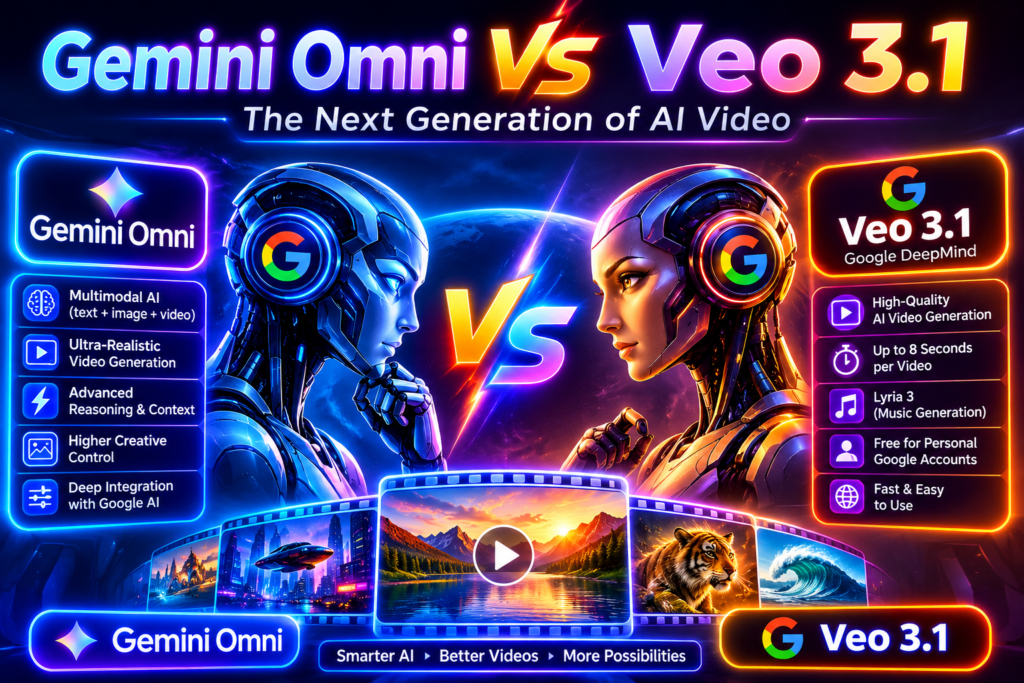
Gemini Omni vs Veo 3.1
One important point is that Gemini Omni Flash and Veo 3.1 are not simply the same model with different names.
Google’s current documentation lists both models and gives them different capabilities.
| Feature | Gemini Omni Flash | Veo 3.1 |
|---|---|---|
| Text-to-video | Yes | Yes |
| Image-to-video | Yes | Yes |
| Video editing | Yes | Supported workflows |
| Conversational editing | Strong focus | Not the main focus |
| Short-form generation | Yes | Yes |
| Reference workflows | Yes | Yes, depending on variant |
| Video extension | Limited / workflow dependent | Supported |
| First/last-frame control | Not the main focus | Supported |
| Best for | Fast generation and editing | Controlled production workflows |
The biggest difference is therefore not simply quality.
It is workflow.
Veo 3.1 remains particularly useful when you need specific production controls such as video extension or first-and-last-frame workflows.
Gemini Omni Flash is more interesting when your priority is rapid creation, multimodal input and conversational editing.
If you want a broader comparison between leading AI video platforms, see The 3 Best AI Video Generators in 2026 (Comparison + Prompts) on AIAnimMedia.
So the better question isn’t:
“Which model is better?”
It’s:
“Which model fits the way I want to create videos?”
How Gemini Omni Fits Into an AI Video Workflow
Gemini Omni doesn’t necessarily have to replace every other AI tool you use.
Gemini Omni video generation works best when it’s treated as one stage in a larger pipeline rather than a single all-in-one solution.
In fact, it may be more useful as one part of a larger production workflow.
A practical setup could look like this:
Step 1 — Idea Start with a simple concept or story.
Step 2 — Image Create or prepare the main visual reference.
Step 3 — Gemini Omni Use the reference to generate the first video shot.
Step 4 — Conversational editing Ask Gemini to refine the movement, camera, lighting or background.
Step 5 — Additional AI tools Use other tools for upscaling, voice, music or specialized effects.
Step 6 — Final editing Combine the clips in your preferred video editor.
For a more detailed approach to building an end-to-end production system, see our Building a Professional AI Video Workflow guide.
This approach is important because no single AI tool currently does everything perfectly.
The strongest workflow is often a combination of several specialized tools.
Current Limitations
Gemini Omni is impressive, but it isn’t a complete replacement for a traditional video-production workflow.
There are several limitations to keep in mind.
Short video duration The Gemini Omni Flash API focuses on relatively short clips. That is excellent for individual shots and social content, but longer videos still require multiple generations and editing.
Availability varies Features can differ depending on:
- Country
- Google account
- Subscription
- Product
- Google Flow availability
- API access
So a feature shown in a Google demonstration may not necessarily be available to every user.
Not every editing feature is supported Gemini Omni Flash has strong conversational editing capabilities, but Veo models still offer certain production controls that Omni does not. For example, Google’s Flow documentation lists video extension and frame-specific workflows differently across the available models.
Credits can matter Google Flow uses a credit system, and generation costs vary by model and video length. That means heavy experimentation can become expensive on paid plans. Before starting a large project, check the current credit requirements inside Flow.
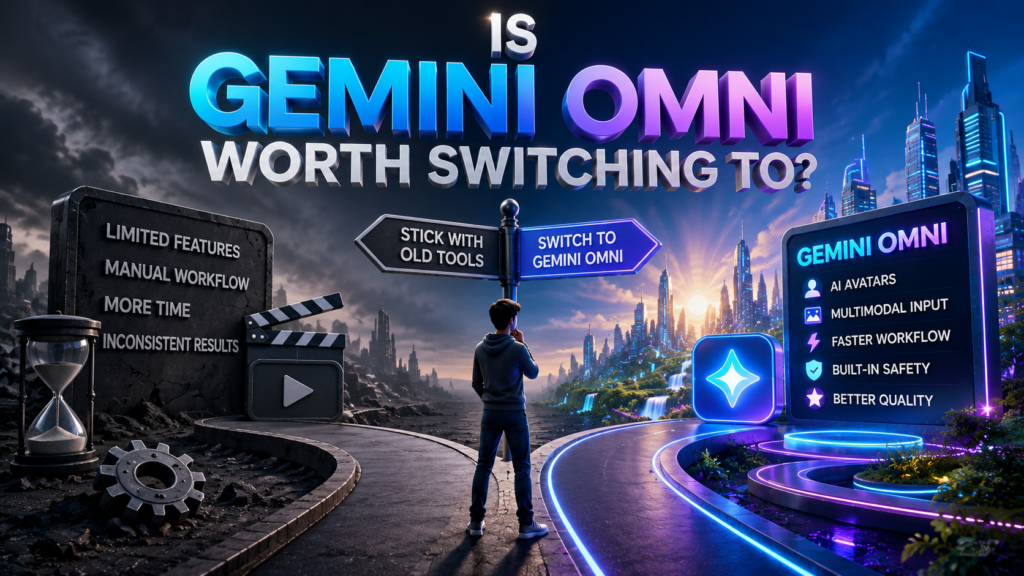
Is Gemini Omni Worth Trying?
If you only want a simple text-to-video generator, Gemini Omni may not completely change your workflow.
But if you regularly work with reference images, existing video and iterative edits, it becomes much more interesting.
The biggest advantage is the conversational workflow.
Instead of:
Generate → Download → Edit → Upload → Regenerate
you can move closer to:
Generate → Ask for a change → Refine → Ask for another change
That could be particularly useful for:
- YouTube Shorts
- TikTok videos
- Instagram Reels
- AI animation
- Product demonstrations
- Explainer videos
- Creative experiments
- Short cinematic projects
It is also worth testing if you already use Google Flow because Omni Flash sits alongside Google’s Veo models rather than existing completely separately from them.
How to Get Better Gemini Omni Results
The quality of your input still matters.
Don’t automatically assume that a huge prompt will produce a better video.
Instead, clearly describe four things:
Subject + Action + Camera + Environment
For example:
A futuristic female explorer walks through a neon city at night. The camera slowly follows behind her. Light rain falls while reflections appear on the wet street. Cinematic lighting, realistic movement, detailed environment.
For image-to-video:
Use the uploaded image as the visual reference. Keep the character’s appearance consistent. Make her slowly turn toward the camera while her hair moves naturally in the wind. Use a slow cinematic camera push-in.
For editing:
Keep the original character and composition. Change only the background to a futuristic city at night. Add soft neon lighting.
The key is to tell the model what should change and what should stay the same.
That can help reduce unwanted changes during editing.
For more practical AI video creation advice, see our AI Video Creation Tips: 5 Mistakes to Avoid article.
A Simple Gemini Omni Workflow
For an AI video creator, a practical workflow could look like this:
Step 1: Create the reference image Start with an image that contains the subject, character or product you want to animate.
Step 2: Add the image to Gemini Omni Use the image as the visual foundation for the video.
Step 3: Describe the movement Don’t just describe what the image looks like. Explain what should move.
For example:
The character slowly turns toward the camera while the camera moves forward.
Step 4: Add camera direction Camera instructions can make a major difference. Try:
- Slow push-in
- Tracking shot
- Pan left
- Pan right
- Low-angle shot
- Over-the-shoulder shot
- Static camera
- Slow orbit
Step 5: Generate the clip Create the first version and inspect the movement.
Step 6: Refine through conversation If something doesn’t look right, explain what needs to change.
For example:
Keep everything else unchanged, but make the character’s movement slower and more natural.
Step 7: Export and edit Once the individual clips are ready, combine them in your preferred editor.
This workflow is especially useful for short-form videos where several short AI-generated shots are assembled into one final video.
Final Verdict
Gemini Omni is more than another AI video generator.
Its real strength is the combination of multimodal inputs and conversational video editing.
Instead of starting with a blank prompt every time, creators can provide references, generate a clip and continue refining it through natural-language instructions.
That makes the workflow feel less like:
Prompt → Generate → Start again
and more like:
Create → Review → Talk → Refine
Veo 3.1 still has important advantages for specific production workflows, particularly when you need features such as video extension and frame-based control.
But Gemini Omni introduces a different direction for Google’s AI video strategy.
The focus is shifting from simply generating a clip to helping creators build and refine the clip through an ongoing conversation.
For AI video creators, that makes Gemini Omni worth testing.
FAQ
What is Gemini Omni? Gemini Omni is Google’s multimodal generative model family focused initially on video creation and editing. Gemini Omni Flash is the first model in the family.
Is Gemini Omni the same as Veo? No. Gemini Omni Flash and Veo 3.1 are separate Google video models with different capabilities and workflows.
Can Gemini Omni generate videos from images? Yes. Gemini Omni Flash supports image-based video generation and reference workflows.
Can Gemini Omni edit existing videos? Yes. Google supports video editing workflows with Gemini Omni Flash, although available features depend on the product and current rollout.
How long can Gemini Omni videos be? The available video duration depends on the Google product you are using. The Gemini API and Google Flow can have different limits and options.
Is Gemini Omni free? Availability and pricing depend on the Google product, region and account. Google Flow uses credits, while API usage has its own pricing and limits.
Which is better, Gemini Omni or Veo 3.1? Neither is universally better. Gemini Omni Flash is particularly interesting for conversational editing and multimodal workflows, while Veo 3.1 offers production features that are better suited to certain controlled-generation workflows.

Final Takeaway
Gemini Omni shows where AI video creation may be heading next.
The future isn’t necessarily about finding one model that generates the perfect short clip.
It may be about having an AI system that understands your references, follows your creative direction and lets you keep refining the result without constantly starting over.
That is the real promise of Gemini Omni.
Generate less. Refine more. Create faster.
Further Reading
- Gemini Omni — Google DeepMind
- Gemini Omni Flash — Google AI for Developers
- Google Flow — AI video creation and model comparison
- Gemini API — Video generation documentation
You might also like: More AI News
Try Gemini Omni
If you’re experimenting with AI video, Gemini Omni is worth adding to your workflow and comparing with tools such as PixVerse, Kling and Veo.
The best results may not come from choosing one AI video generator.
They may come from combining the right tools at each stage of production.
[Get started with PixVerse through our affiliate link]